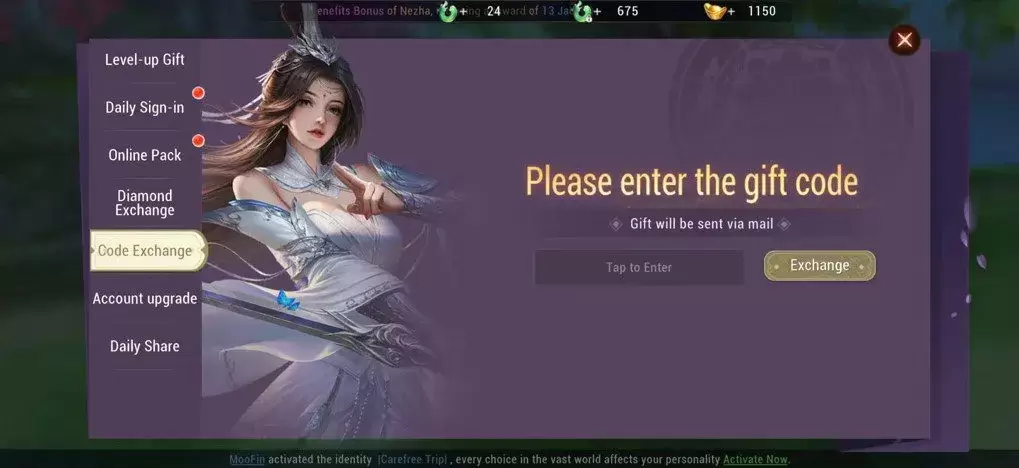
Design your own custom cross stitch patterns.
十字繡圖案設計器
Cross Stitch Pattern Creator
Includes 4 sample patterns. Free to download. A $2.99 in-app purchase is required to activate full functionality.
包含4個示例圖案,免費下載。需花費$2.99進行應用內購買以啟用全部功能。
For the best experience, we recommend using a tablet due to the size of cross stitch patterns.
由於十字繡圖案尺寸較大,建議使用平板電腦以獲得最佳體驗。
Use the Cross Stitch Pattern Creator to design unique cross stitch projects.
使用十字繡圖案設計器來打造獨特的十字繡作品。
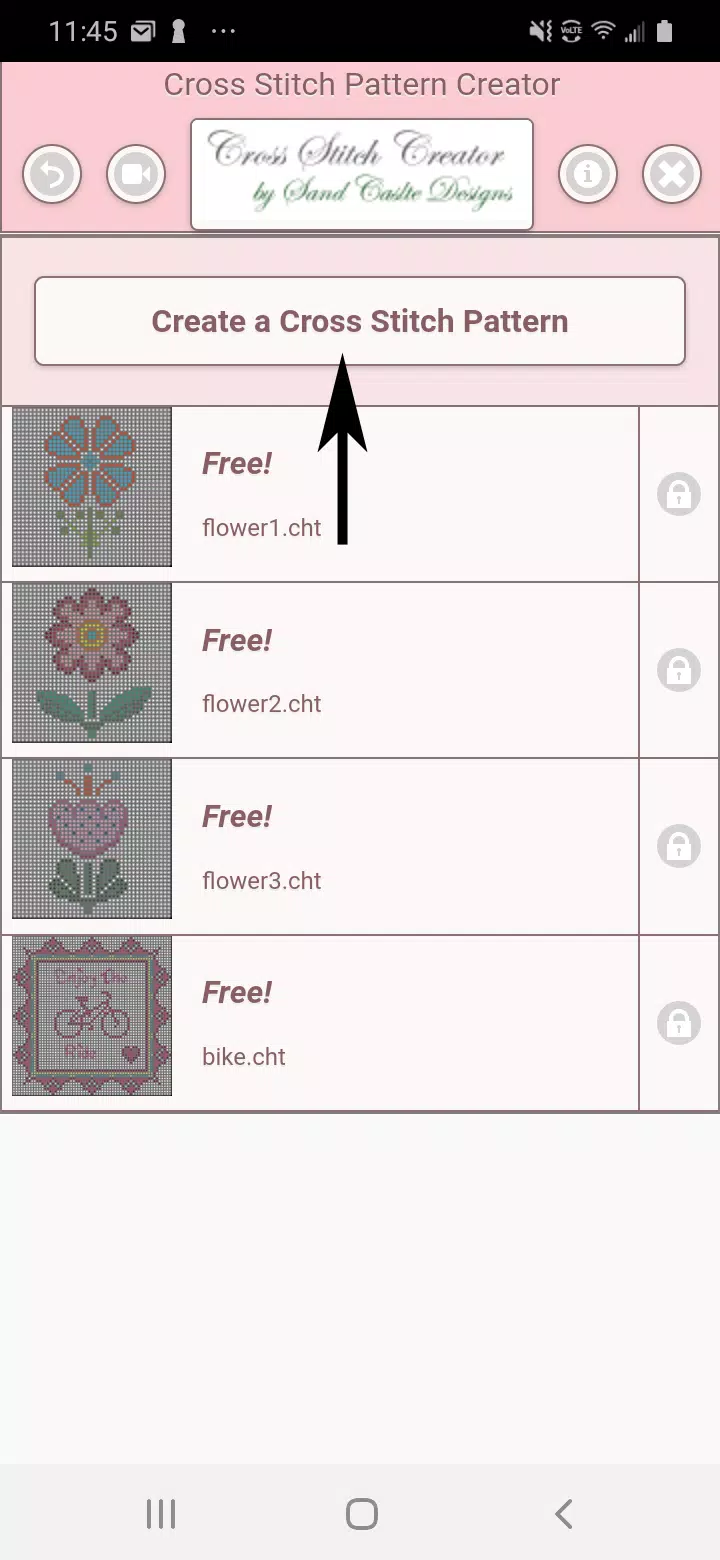
To begin creating a pattern, tap the Create a Cross Stitch Pattern button.
點選“建立十字繡圖案”按鈕開始製作圖案。
The Cross Stitch Pattern Editor will open. Fill in the grid squares with DMC floss colors.
十字繡圖案編輯器將開啟。使用DMC線顏色填充網格方塊。
You can even add custom colors if desired.
如有需要,您還可以新增自定義顏色。
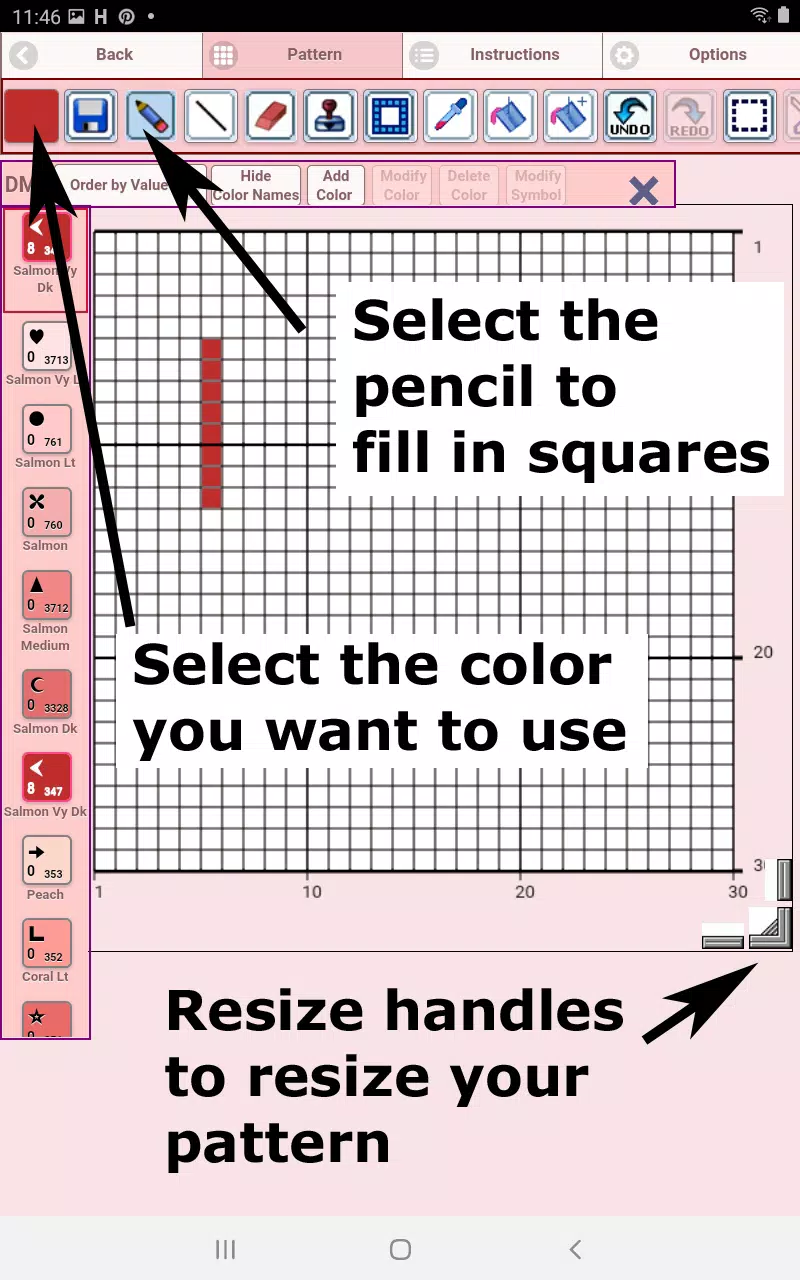
Getting started: Use the Pencil tool to fill squares. Use the Eraser to clear squares from your pattern.
入門指南:使用鉛筆工具填充方塊。使用橡皮擦清除圖案中的方塊。
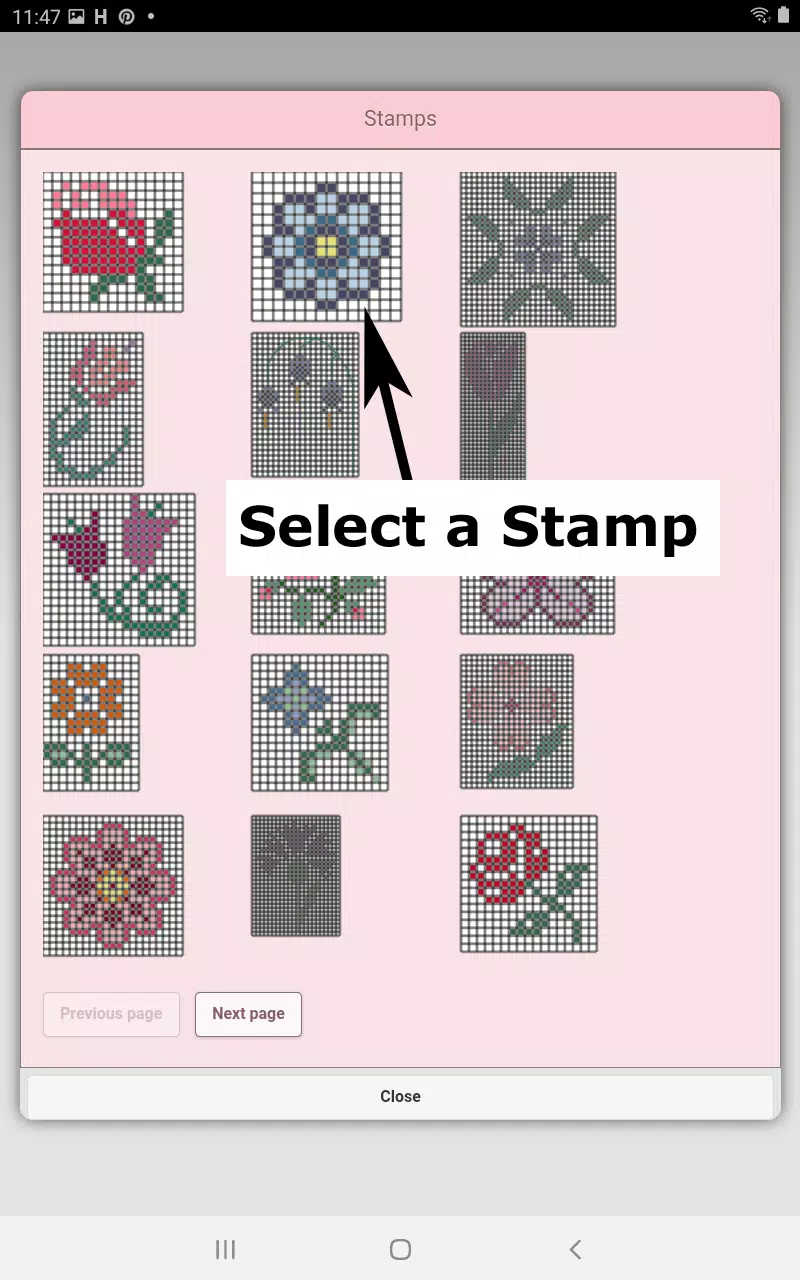
Choose from over 80 decorative stamps and borders to apply to your design.
從超過80種裝飾印章和邊框中選擇,應用於您的設計。
The button bar, from left to right, includes:
按鈕欄從左到右包括:
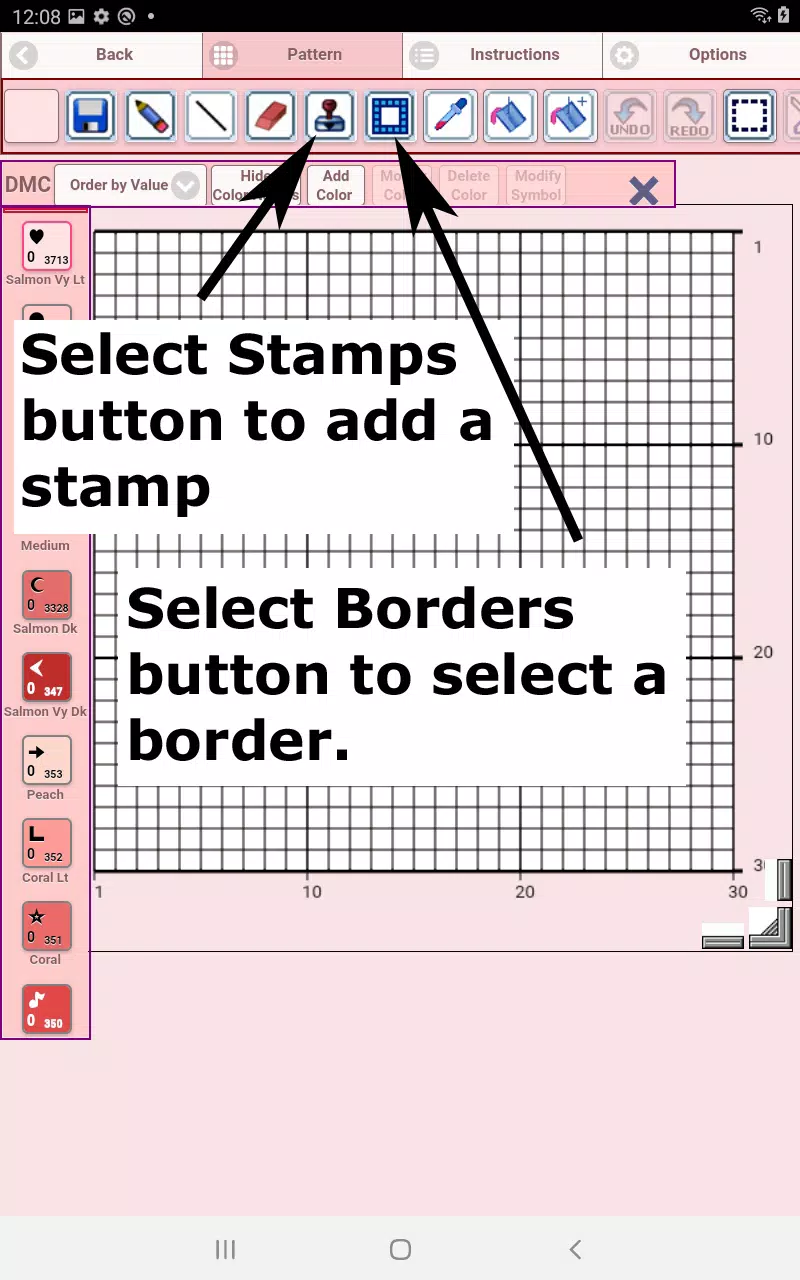
DMC Floss Color button – Select the thread color you wish to use.
DMC線顏色按鈕 – 選擇您想要使用的線材顏色。
Save button – Save your pattern.
儲存按鈕 – 儲存您的圖案。
Pencil button – Fill in squares on your pattern.
鉛筆按鈕 – 填充圖案中的方塊。
Eraser button – Erase filled squares and backstitch lines.
橡皮擦按鈕 – 清除已填充的方塊和回針線。
Backstitch button – First, choose a color using the color button. Then, select the Backstitch button to add backstitch lines.
回針按鈕 – 首先使用顏色按鈕選擇一種顏色。然後,點選回針按鈕新增回針線。
Backstitch move button – Select and drag an entire backstitch line to a new position.
移動回針按鈕 – 選中並拖動整條回針線至新位置。
Backstitch move stitch end – Select a backstitch. Blue handles will appear at each end. Drag either handle to adjust the line.
調整回針端點 – 選擇一條回針。兩端會出現藍色手柄。拖動任一柄以調整線條。
Stamps button – Add small decorative stamps (mini cross stitch motifs) to your pattern.
印章按鈕 – 在圖案中新增小型裝飾印章(迷你十字繡紋樣)。
Borders button – Add selectable borders that automatically frame your pattern.
邊框按鈕 – 新增可選的自動為圖案加框的邊框。
Dropper button – Pick up a color from your pattern to apply more of that same color.
吸管工具按鈕 – 從您的圖案中吸取一種顏色,以便應用更多相同的顏色。
Bucket button – Fill a selected area with the currently chosen color.
油漆桶按鈕 – 使用當前選定的顏色填充選定區域。
Bucket+ button – Replace one color with the currently selected color throughout.
替換顏色按鈕 – 將圖案中的某一種顏色全部替換為當前選定的顏色。
Undo button – Reverse your last action.
撤銷按鈕 – 撤消您的上一個操作。
Redo button – Restore a change you undid.
重做按鈕 – 恢復您已撤消的更改。
Selection box button – Select an area of the pattern to cut, copy, rotate, or flip.
選區框按鈕 – 選擇圖案中的區域以進行剪下、複製、旋轉或翻轉。
Cut button – First, use the Selection box to choose an area. Then tap Cut to remove it.
剪下按鈕 – 首先使用選區框選擇一個區域。然後點選剪下將其移除。
Copy button – First, select an area with the Selection box. Then tap Copy to duplicate it to the clipboard.
複製按鈕 – 首先使用選區框選擇一個區域。然後點選複製到剪貼簿進行復制。
Paste button – Paste the copied area onto your pattern and drag it into place.
貼上按鈕 – 將複製的區域貼上到您的圖案上,並拖動至合適位置。
Rotate button – Rotate the selected area or the entire pattern.
旋轉按鈕 – 旋轉選中的區域或整個圖案。
Flip right/left button – Flip the selection or whole pattern horizontally.
水平翻轉按鈕(左/右)– 水平翻轉選中區域或整個圖案。
Flip top/bottom button – Flip the selection or whole pattern vertically.
垂直翻轉按鈕(上/下)– 垂直翻轉選中區域或整個圖案。
Zoom in button – Enlarge the pattern view.
放大按鈕 – 放大圖案檢視。
Zoom out button – Reduce the pattern view.
縮小按鈕 – 縮小圖案檢視。
Symbols button – Display a unique symbol on each color to represent its value.
符號按鈕 – 為每種顏色顯示一個獨特的符號以代表其數值。
Picture button – Choose a photo from your device to convert into a pattern.
圖片按鈕 – 從您的裝置中選擇一張照片並將其轉換為圖案。
Social media button – Share your pattern via email, text, or other platforms.
社交媒體按鈕 – 透過電子郵件、簡訊或其他平臺分享您的圖案。
Resize bars – Located at the bottom right corner. Drag to adjust your pattern's dimensions.
調整大小欄 – 位於右下角。拖動以調整您圖案的尺寸。
Option settings – Change the grid color, switch the fill style from Solid to X's, or hide the row/column counter.
選項設定 – 更改網格顏色,將填充樣式從純色切換為“X”形,或隱藏行/列計數器。
select not to display the row/column counter.
選擇不顯示行/列計數器。
Instruction page – Shows the DMC colors used and the finished sizes for
說明頁面 – 顯示所使用的DMC顏色以及不同Aida布尺寸下的成品尺寸:
different Aida Cloth sizes
Finished Product page – Previews your stitched pattern. You can also change the fabric background color.
成品預覽頁 – 預覽您的刺繡圖案。您還可以更改織物背景顏色。
Cross Stitch Pattern Creator
- 類別 : 藝術與設計
- 版本 : 5.0.2
- 尺寸 : 7.1 MB
- 開發商 : Crochet Designs
- 更新 : Aug 07,2026
-
《幻想生活i》免費DLC將於“聖誕節前後”更新上線
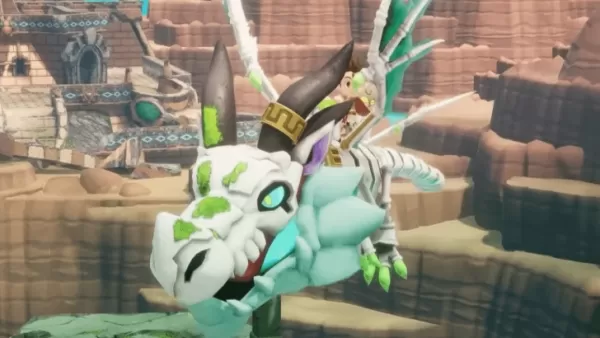
《幻想生活i:偷時間的少女》將在2025年聖誕節期間推出免費的大型DLC。在此瞭解此次更新的詳細資訊及其他內容!邪惡掮客巴扎里奧的陰謀 免費更新聖誕節前後的重大DLC《幻想生活i:偷時間的少女》即將推出的免費DLC“邪惡掮客巴扎里奧的陰謀”已由Level-5執行長日野晃博正式確認為2025年聖誕假日檔期釋出。在官方Twitter(X)賬號上,日野回應了粉絲對於釋出視窗的擔憂,並向社羣提供了保證。該更新首次透露是在9月25日釋出的預告片中,預告片末尾顯示釋出視窗為2025年12月。預告片突出了關鍵
by Gabriel Sep 20,2026
-
Avowed:攻擊還是寬恕船長艾爾弗爾?
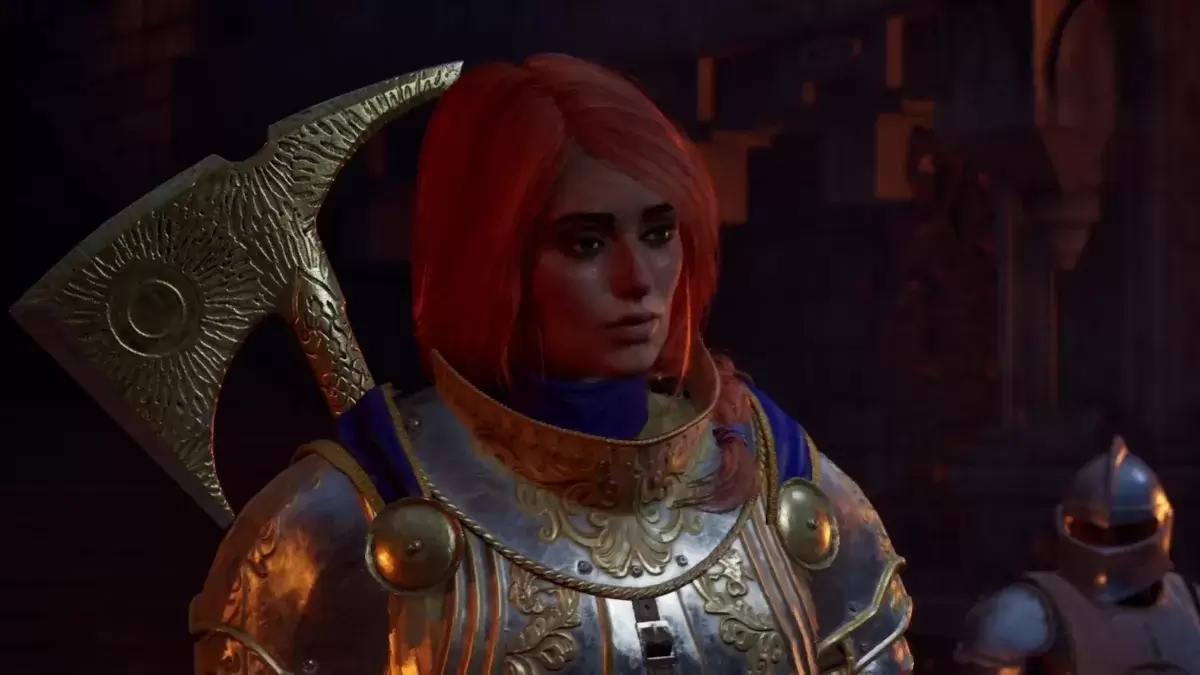
在《Avowed》中,當你在主線任務“通往花園之路”的高潮部分接近時,有機會擊殺隊長艾爾弗爾,或者讓她活著,這帶來了另一個艱難的選擇。推薦影片如果洛德溫的熱心信徒在你旅程早期發揮了關鍵作用,導致菲奧爾·梅因維爾諾被焚燬,那麼她對城鎮毀滅的自滿滿足感以及吉塔的憤怒,使得復仇變得相當誘人。此外,你的決定決定了你是否能獲得專屬戰利品。在《Avowed》中,你應該攻擊還是放過隊長艾爾弗爾?當可以選擇放過或戰鬥時,在此階段的《Avowed》中,攻擊隊長艾爾弗爾是最佳選擇。這種方法讓你能夠獲得大量原本無法獲
by Mila Sep 20,2026



-
您會喜歡的令人上癮的休閒遊戲
總共 10 03-05
-
令人上癮的超級音樂遊戲以進行快速玩
總共 9 06-10
-

-
 Undress AI 工具丨141.53M2
 -

-
 Anime World Wallpapers 個人化丨6.15M4
 -
 NLS Mod Menu Brawl Stars 工具丨469 MB5
 -
 ToonStream 娛樂丨10 MB6